
ChatGPT and Gemini tabs are reserved for later — keys stay per provider and are never mixed.
Recommended: Claude community connector
Easiest path if you already use Claude.ai or Claude Desktop. Claude is the host; Clippter only runs tools. No Anthropic API key is needed in Clippter for MCP.
Directory: claude.ai/directory/connectors/clippter.
Before you start in Clippter
- 1Owner/admin: turn workspace AI on (EU notice), then Enable MCP.
- 2Set each section to Off / Read / Edit (same matrix for Ask and MCP; use Set all to if you want every section the same). Editable when MCP is on, even without a BYOK key.
Connection always starts in Claude. Clippter shows linked clients after you connect.
Connect from Discover
Labels match Claude’s English UI. Dutch Claude uses the same options (for example Ontdekken, Verbind, Aanpassen).
- 1In Claude.ai or Claude Desktop open Customize → Connectors → Discover.
- 2Search for Clippter (Community connector).
- 3Click Connect / Verbind.
- 4Sign in with the same Clippter user that belongs to the workspace where you enabled MCP (do not create a new empty test account for this step).
- 5On Connect Clippter to Claude, pick the workspace, tick the EU notice, then Allow access. If MCP is still off for that workspace and you are owner/admin, the button becomes Enable MCP and allow access and turns workspace AI + MCP on in the same step.
- 6Back in Clippter Settings → AI, the connector should appear under Connected MCP clients. Use Disconnect to revoke later.
Common mistakes
- Signing in with a different Clippter user than the workspace where MCP is on.
- Approving a brand-new empty workspace instead of your real agency workspace.
- Starting again with an old authorization tab after a failed allow: restart from Claude so you get a fresh login.
If Allow access fails
Retry once from Claude (fresh connector login). If it still fails, ask your Clippter admin to confirm workspace AI and MCP are on in Settings → AI, and that you approved the correct workspace on Connect Clippter to Claude.
Backup: custom connector
Only if Discover is unavailable. Use the MCP server URL from Settings → AI (https://app.clippter.com/api/mcp), or this install link:
- 1Add custom connector → paste the URL → Continue.
- 2Authentication: Log in now. OAuth client: Register automatically. Leave request headers empty. Do not choose Use your own OAuth client.
- 3Add, then sign in and approve the workspace as in the community connector steps above.
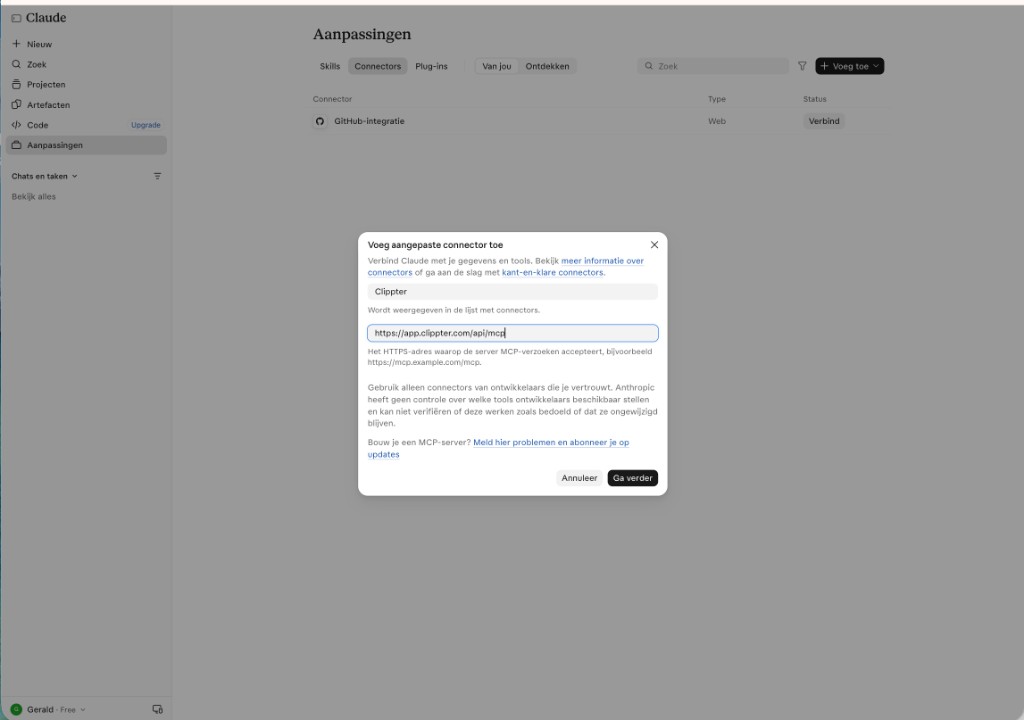
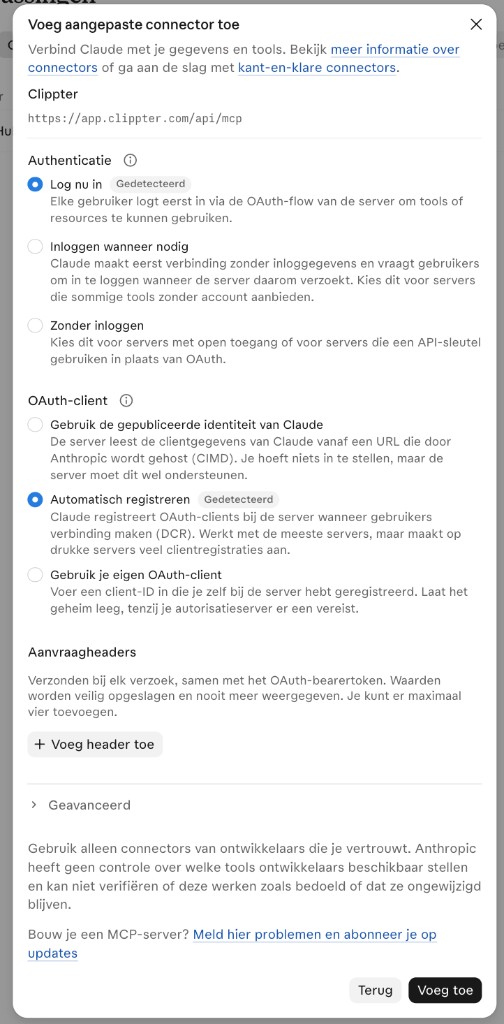
Extra mistake on custom only: leaving Claude on Use your own OAuth client — switch to Register automatically.
Tool access
Shared by the community connector, custom connector, and in-app Ask. In Settings → AI set each area to Off, Read, or Edit. Use Set all to for every section at once. The list matches Workspace modules / the top nav:
- Projects
- Media
- Time
- CRM
- Resourcing
- Finance
- Knowledge
Edit means Claude may change that area for you in this workspace. Keep sections on Read if you only want answers. Off means that area is invisible to the model.
Everyday creates and updates can run without asking again.
High-impact actions need a second confirmation in the chat first, for example:
- Closing or cancelling a project
- Marking a project delivered or invoiced
- Marking a deal won/lost
- Preparing a draft invoice
- Sending invoices or client email (send tools come later)
Claude never deletes records.
If Claude cannot do something because Clippter has no tool for it yet, it can offer to send a short capability request to the Clippter team (after you confirm in chat). That is different from a section set to Off — then enable Read or Edit under Settings → AI instead.
For how-to questions, Claude can search the public Help Center (/help) and open an article (for example Time-for-time). That is separate from your workspace SOPs under Knowledge.
| Section | With Edit (examples) |
|---|---|
| Projects | Create/update projects, tasks, and milestones (e.g. Edit V1 / Final); create project from won deal (confirm in chat) |
| CRM | Companies, contacts, deals; suppliers/talent (list/get/update, upload profile photo from a public URL into Clippter storage — max 5 MB + rate limits; Instagram/TikTok handles + follower counts — Claude can refresh stats; Clippter does not scrape social platforms) |
| Finance | Quotes (incl. line items + post-production hours); invoice readiness; budget/expense snapshots; allocate/log project expenses (confirm); draft invoices; send quote (confirm; PDF first) |
| Resourcing | List team members (names, contract hours, absences); list/create/update planning bookings (booking_type: shoot/edit/buffer/revision/travel; tentative/confirmed); soft-cancel AI tentative bookings |
| Time | List/create time entries (with person names) |
| Media | List folders/files; create folders; rename; move files (never delete) |
| Knowledge | List/get/create/update SOPs |
Finance can list projects ready to invoice and show expense/budget snapshots.
After you confirm, it can help allocate unallocated bank spends to projects or log a manual project expense, prepare draft invoices (one or batch), and email a quote (PDF must be exported first).
Invoice email from AI is not available yet (PDF is browser-only).
Paste a client briefing and ask for a quote: Claude can create CRM records if needed, then open a draft quote from your template/rate cards for you to finish and send.
Optional: Ask in Clippter (your Anthropic key)
Use this when you want chat inside the Clippter app bubble instead of (or as well as) Claude Desktop / Claude.ai.
Where
Chat: app bubble (bottom right) → AI. If workspace AI is off or your key is missing, that tab opens Settings → AI (/settings/ai) so you can finish setup. On Home use Chat with AI. On a project Overview, Ask focuses that project.
Workspace
Owners and admins can enable or disable AI for the whole workspace. Default is off. Enabling requires acknowledging that LLM providers may process data outside the EU. (Same switch as MCP.)
Your key
Each person connects their own Anthropic API key (starts with sk-ant-). OpenAI, Grok, and Gemini keys are not supported yet. Clippter stores it encrypted and shows only the last four characters. Remove the key anytime.
You must acknowledge the same EU / LLM data notice before saving a key.
Ask needs workspace AI on, a key saved, and at least one section on Read or Edit. Answers and changes use only allowed tools (same matrix as MCP).
Using Ask
In the AI tab, open the model picker — same idea as Claude.ai.
Each option shows the version (e.g. Opus (Claude Opus 5.5)) plus a short hint (Haiku = fast, Sonnet = everyday, Opus = complex, Fable = hardest / may need credits).
Only families available on your Anthropic key are listed. Your family choice is remembered in this browser. Chats are saved for your user in this workspace.
Use the header maximize control to enlarge or shrink the AI panel. Use the pen icon for New chat, and the history icon for earlier chats (delete from that list).
On the AI tab, the bubble stays open when you click elsewhere in the app (so you can check CRM or a project). Close it with the X or Escape.
After the first open, reopening keeps your chat without reloading.